Partner guide · Workshop (watchmaker, service center)
Signing services in the service log
Every watch with a Watch Certificate™ passport has its service log. When your workshop signs a service, it enters the log as “Verified by” your workshop, with its warranty and the next service advised: the owner sees it on their passport, and so does the next buyer. This guide shows you how to sign, edit and correct a service, answer your clients' requests and close an appointment. In the screenshots, the orange frames show where to click or what to fill in.
Questa guida è disponibile in inglese e in francese.
How it works
Open the passport of the watch (scan the card or search), then click Sign a service.
Describe the work: the type, the date, what was done and, if you wish, the measurements, photos, warranty and next service.
Sign: the service enters the log as verified by your workshop.
For 48 hours, you can edit or delete it freely. After that it is locked: a correction is still possible, and visible.
Check “To sign” in My services: the appointments to close, the watches dropped off and the services your clients ask you to confirm. Each request also reaches you by email.
info
Good to know
A watchmaker and a service center see exactly the same screens: this guide covers both. A manufacture can sign a service too, including on a watch it does not own. You need a professional account validated by our team, and you cannot sign a service on a watch you own.
Part A
Sign a service
Step 1: open the passport, then “Sign a service”
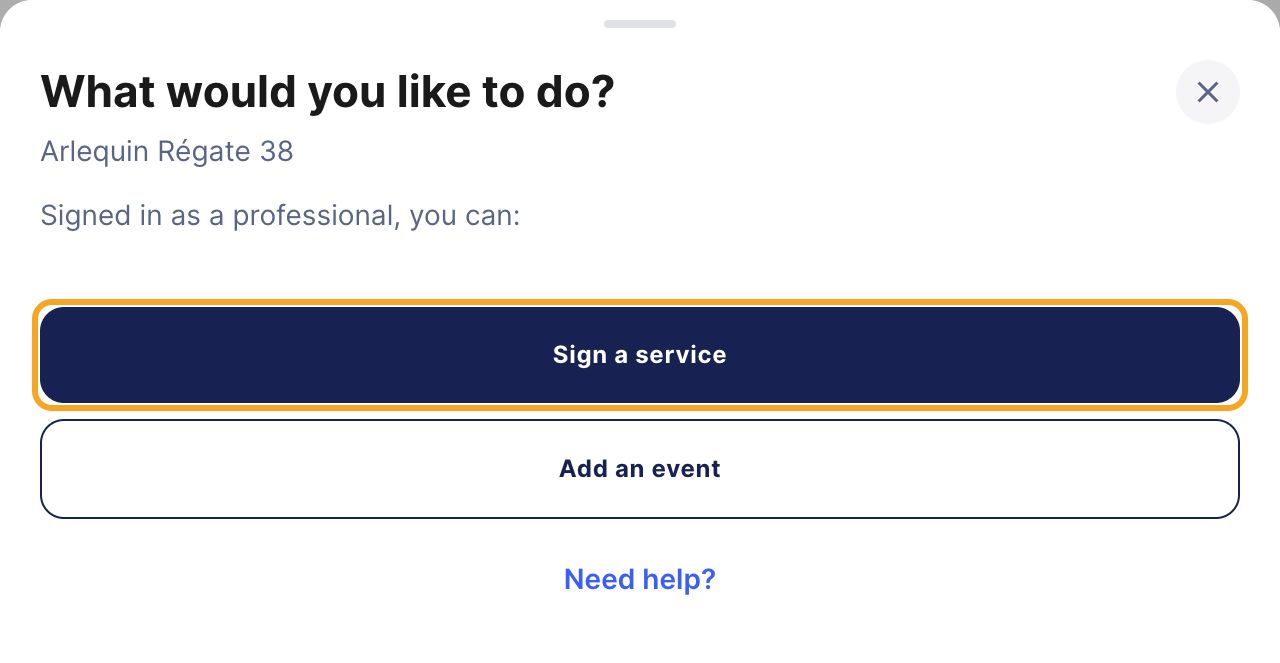
Scan the watch's card or open its passport. Signed in with your professional account, a What would you like to do? window opens: click Sign a service.
When the passport opens, the choice between Sign a service and Add an event.
Step 2: or from “Key dates”
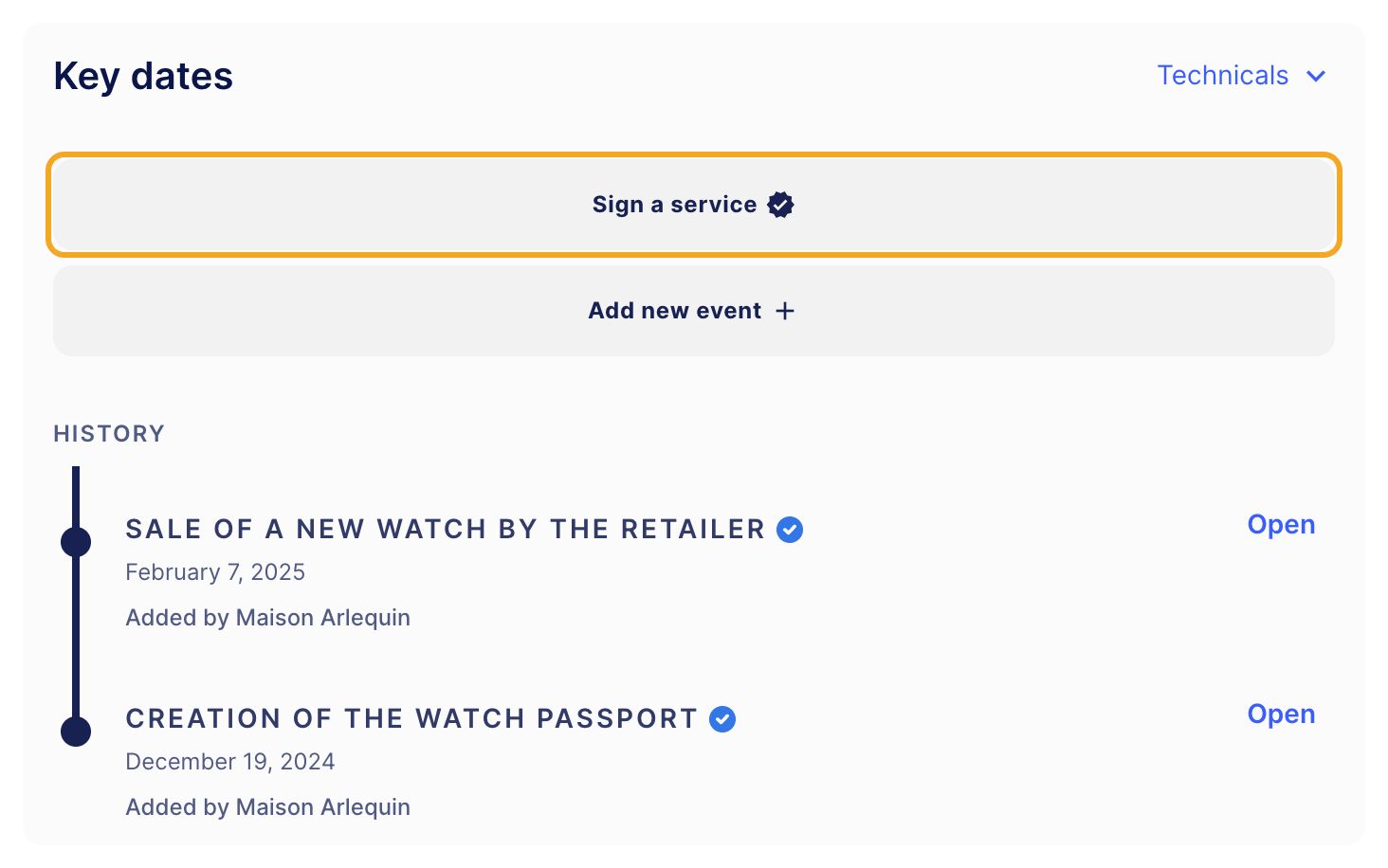
Closed the window? On the passport, in Key dates, click Sign a service. Add new event is for the watch's other events.
Key dates: the Sign a service button, above the watch's history.
Step 3: the CVV code and the work done
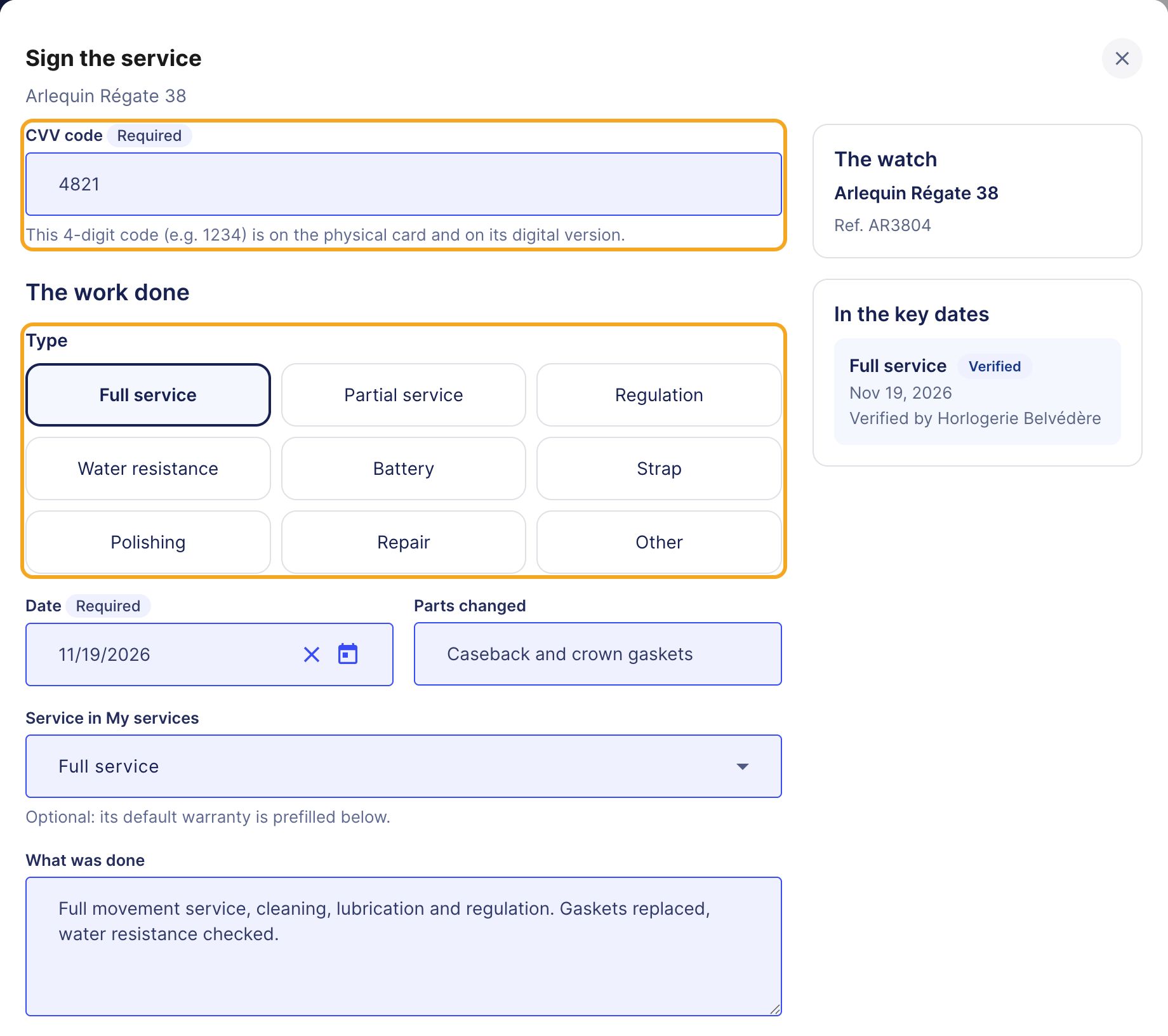
If the watch is not linked to your account yet, type its CVV code: the 4 digits on the physical card or on its digital version. In The work done, choose the Type, check the Date, fill in the Parts changed and, if the service matches one of yours, the Service in My services. Describe your work in What was done. On the right, a preview shows the line as it will appear in the key dates.
The Sign the service form: CVV code, type, date, parts, service and description.
Step 4: measurements and documents, if you wish
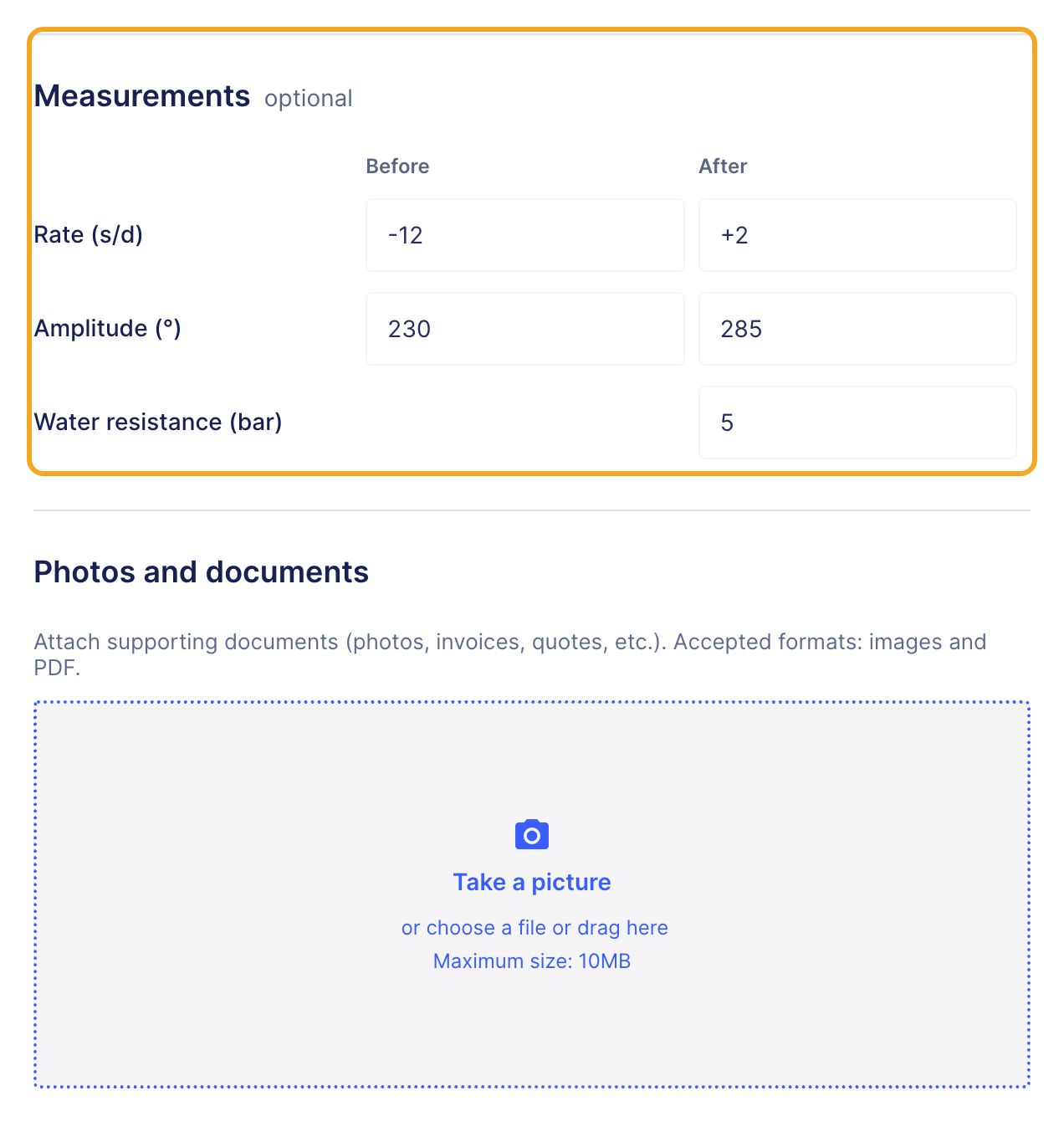
The Measurements are optional: rate and amplitude before and after, water resistance. In Photos and documents, add a photo, an invoice or a quote (images and PDF).
The measurements before and after, then the photos and documents.
Step 5: the warranty, the next service, then “Sign the service”
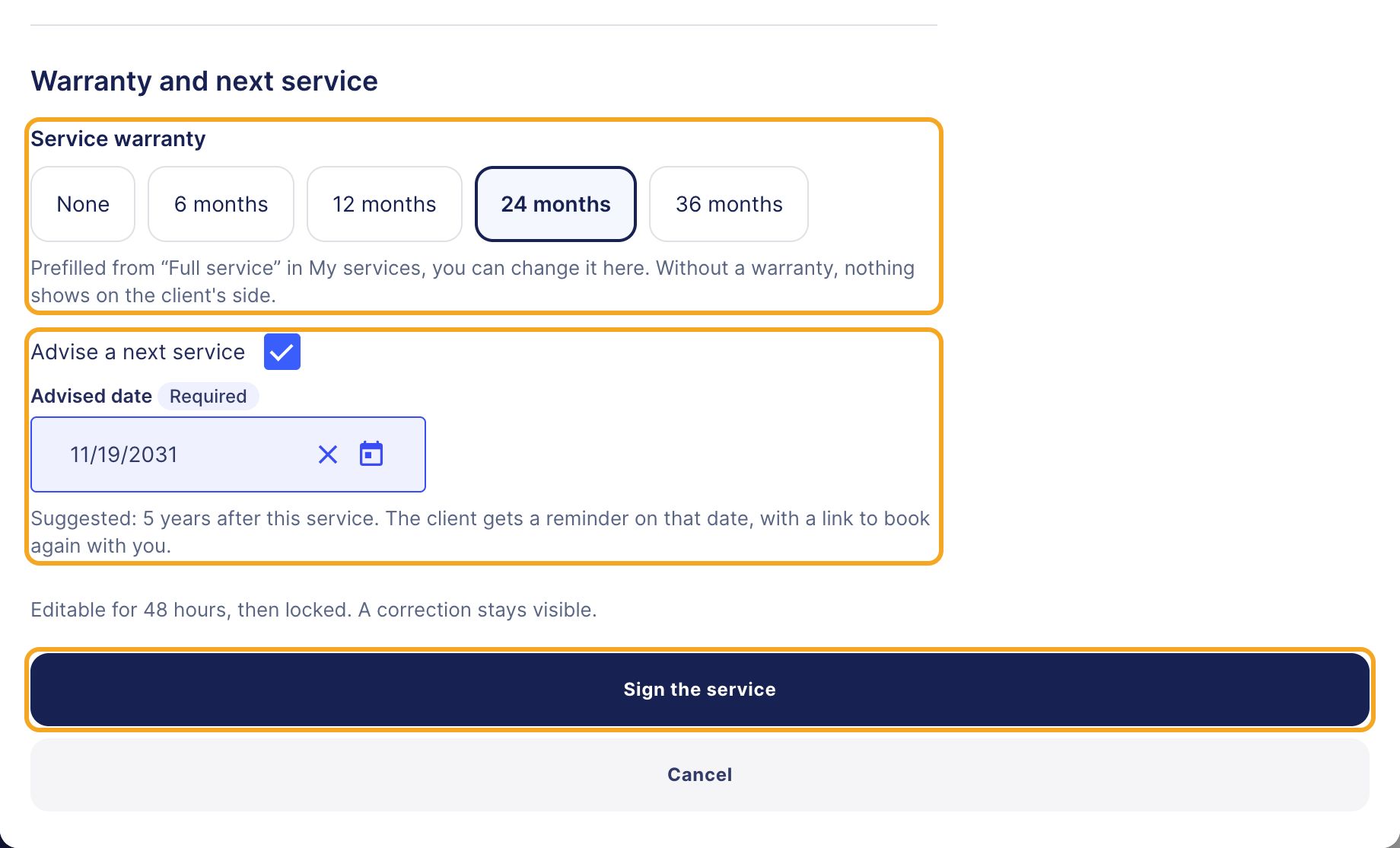
Choose the Service warranty. Without a warranty, nothing shows on the client's side. With a warranty, your client is told by email 30 days before it ends. Tick Advise a next service: the Advised date is suggested from the type of work, and you can change it. On that date, your client gets a reminder by email, with a link to book again with you if your sheet takes appointments. Click Sign the service.
A 24-month warranty, prefilled from the service, and a next service advised in 5 years.
lightbulb
Tip
Set a Default warranty on your services, in My services: when you pick the service in Service in My services, its warranty is prefilled, and you only have to check it.
Step 6: the service is in the log
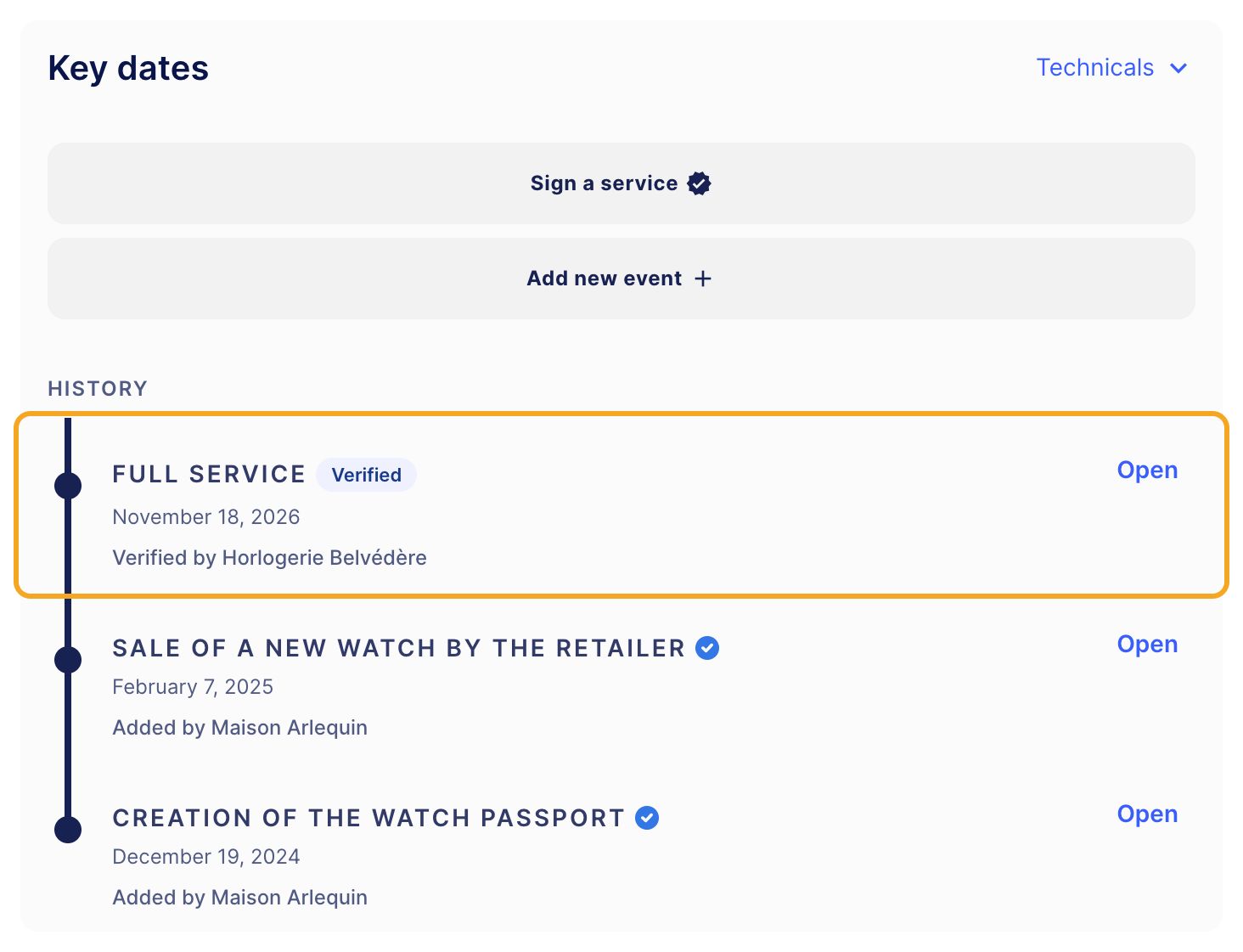
The service shows at the top of the Key dates, with the Verified badge and your workshop's name. The owner sees it on their passport and gets the email “A verified maintenance was added”.
The full service, verified by Horlogerie Belvédère, at the top of the history.
Part B
Edit or correct a service
warning_amber
Warning
A locked service can no longer be deleted, only corrected, and every correction stays visible. Check the watch, the date and the warranty before you sign, and correct within 48 hours if needed.
Step 7: open the service, then “Edit”
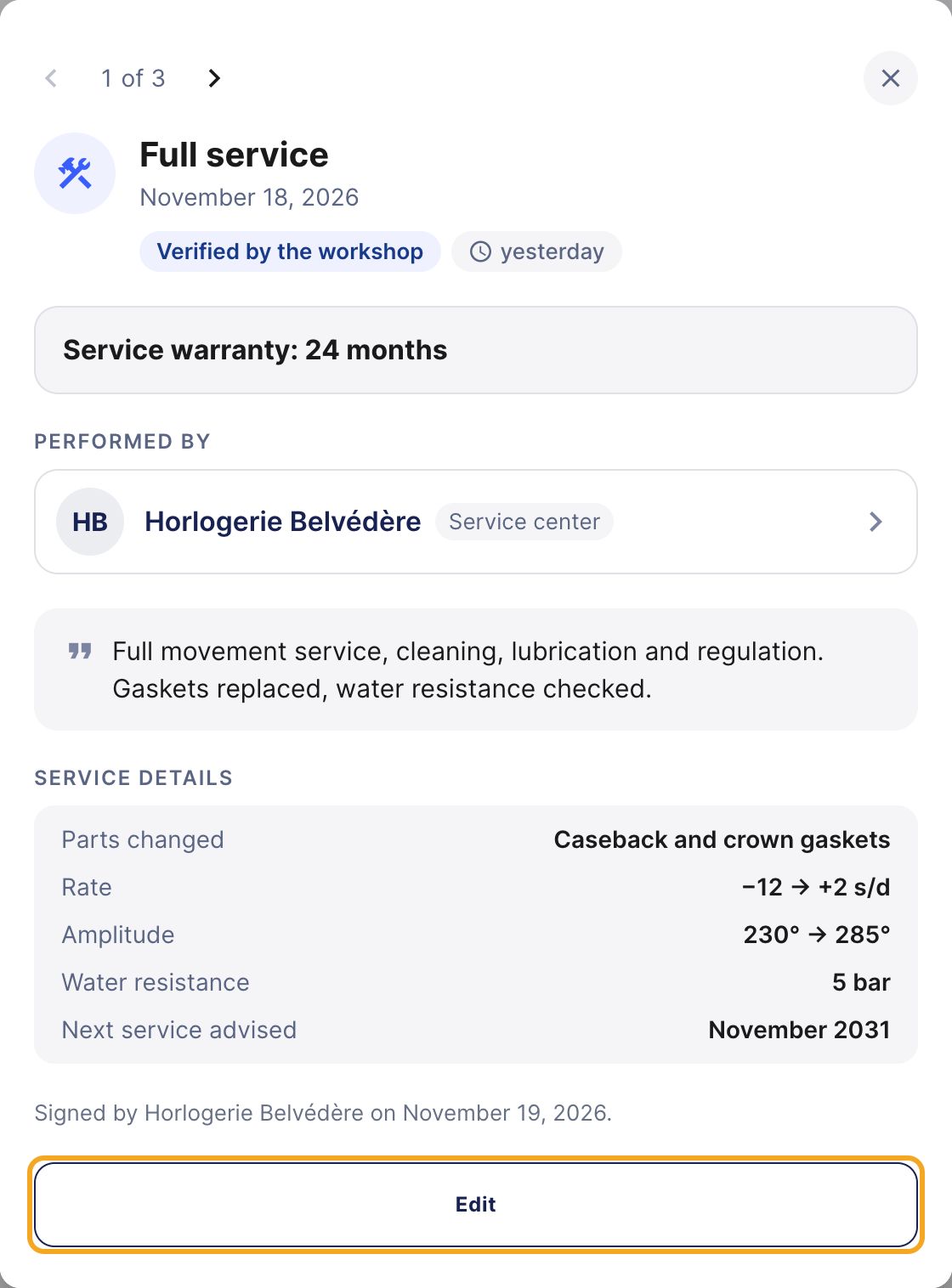
In Key dates, click Open next to the service. Its sheet shows the warranty, your workshop, what was done and the details. Click Edit.
The signed service's sheet, and the Edit button.
Step 8: for 48 hours, edit or delete
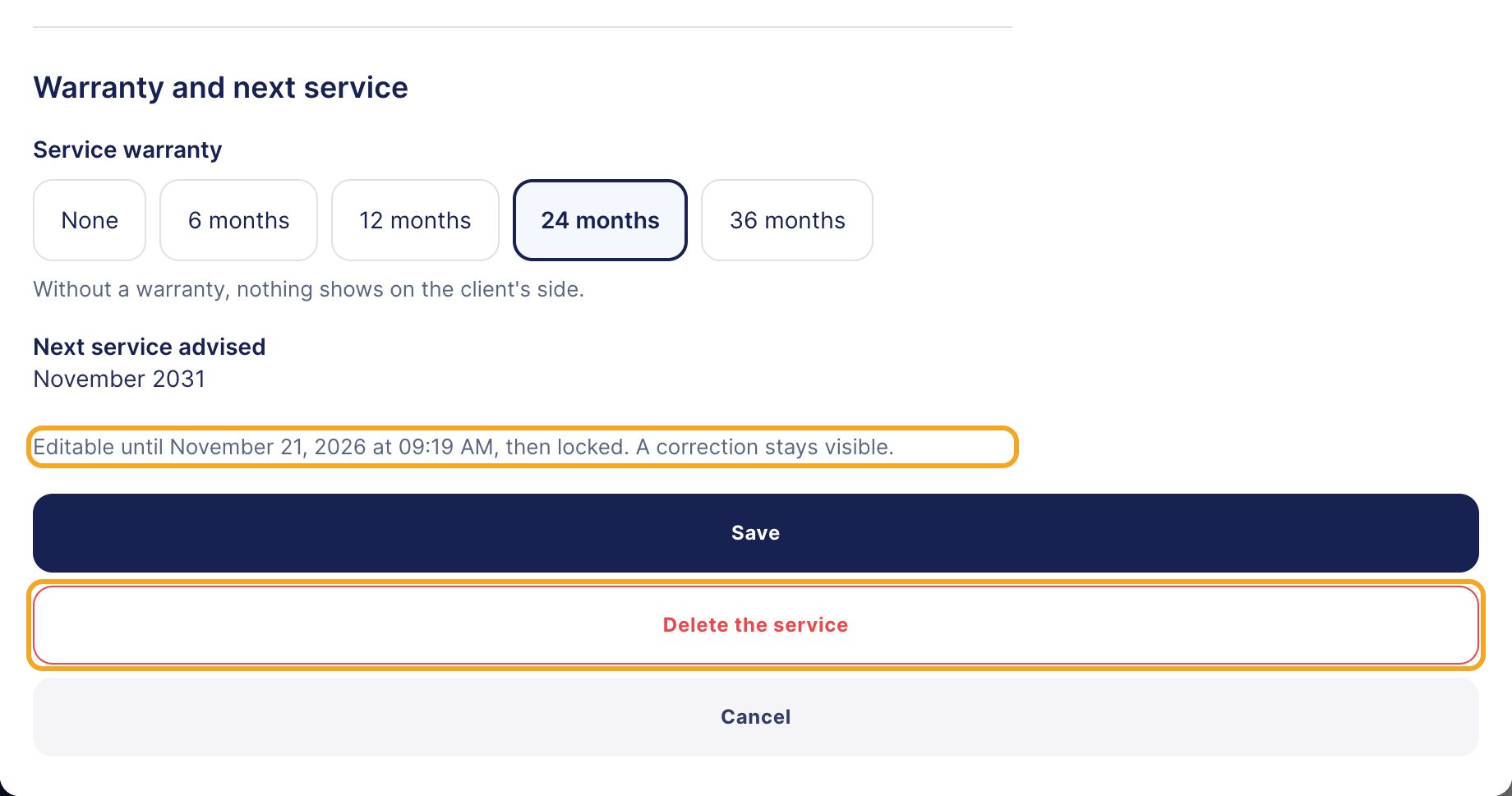
The Edit the service form says until when it can be edited. Change what you need, then click Save. Wrong watch or a duplicate? Delete the service removes it from the log, as long as the 48 hours have not passed.
Editable until two days after signing, with Save and Delete the service.
Step 9: after 48 hours, “Correct”
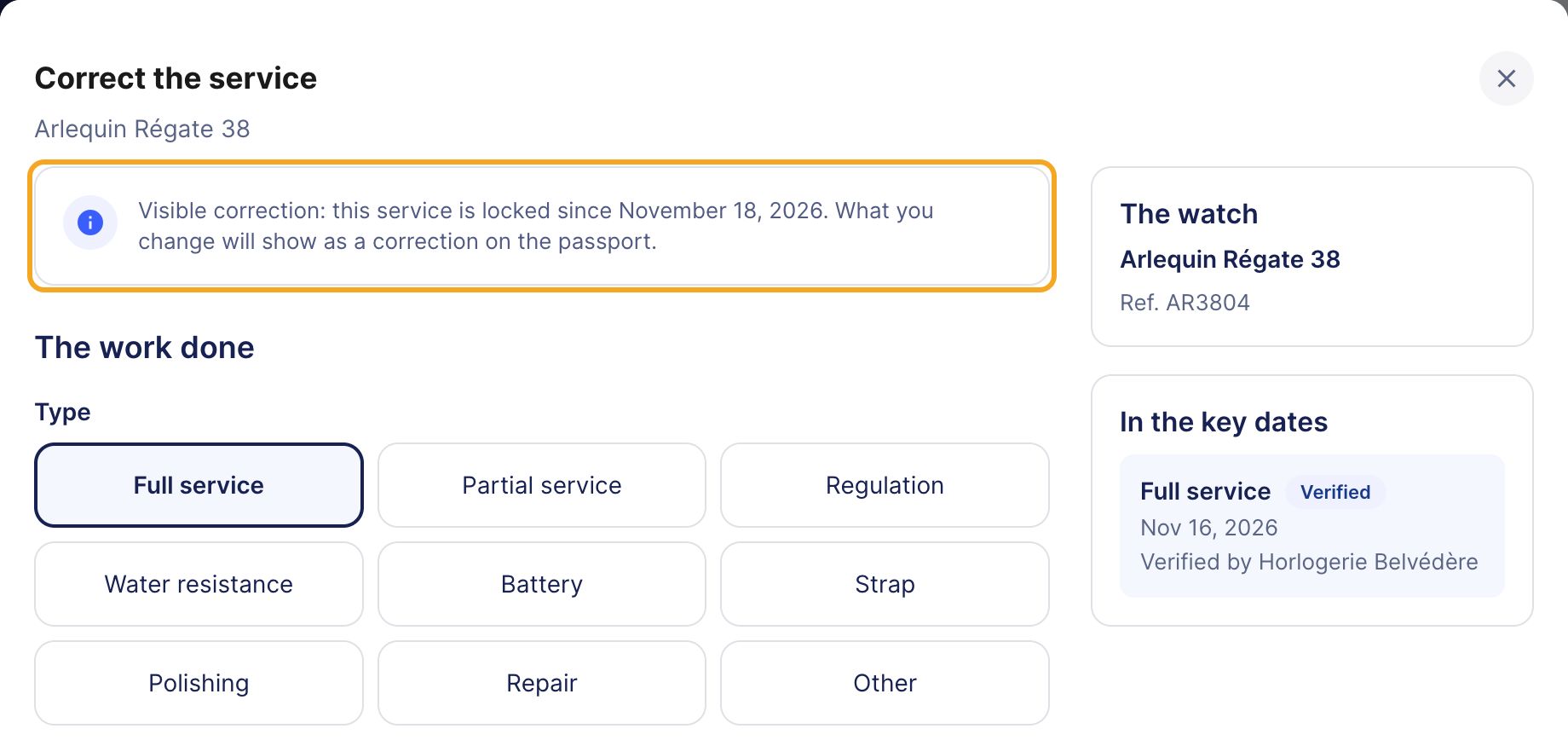
After 48 hours, the service is locked: on its sheet, the button becomes Correct and opens Correct the service. A banner reminds you that what you change will show as a correction on the passport. Click Save the correction. The owner gets the email “A verified maintenance was corrected”, only one a day even if you correct several times.
Correct the service: the correction stays visible on the passport.
Part C
“To sign” and your clients' requests
Step 10: open “My services”, section “To sign”
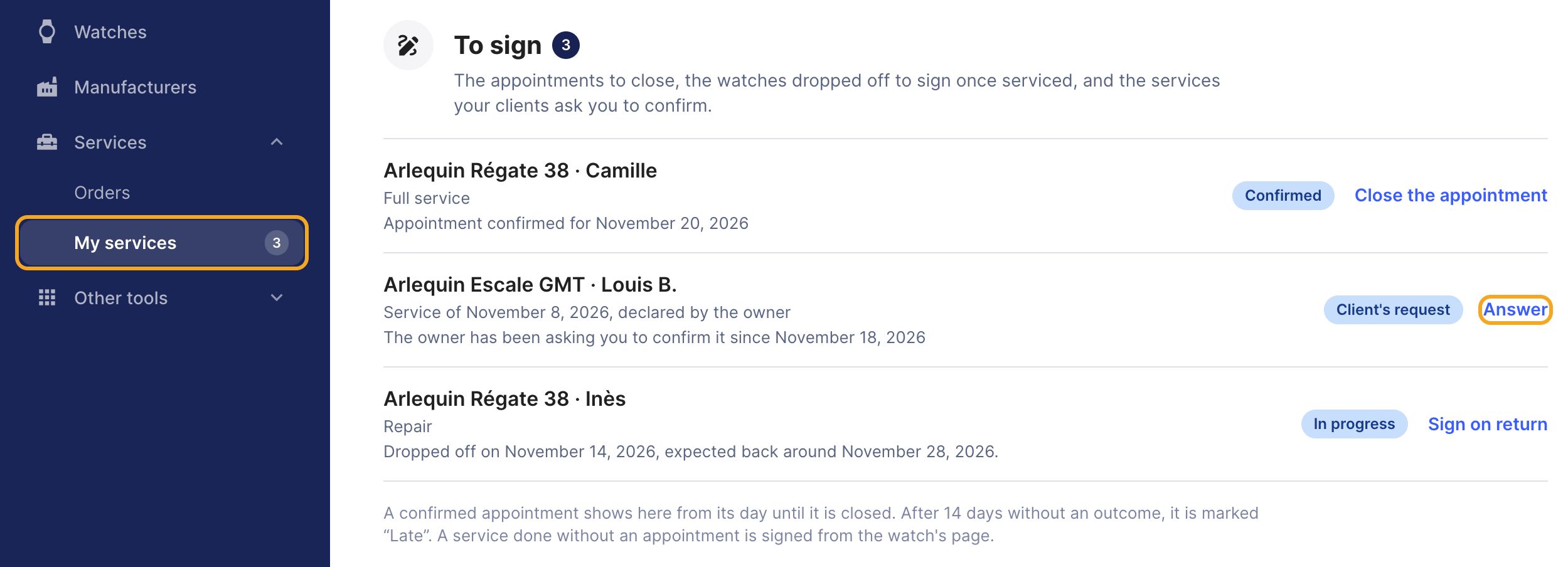
The number on My services, in the menu's Services group, counts what is waiting for you. The To sign section gathers three kinds of rows: an appointment whose day has come (Close the appointment), a watch dropped off with you (Sign on return) and a service an owner asks you to confirm, marked Client's request. On that one, click Answer.
To sign: an appointment to close, a client's request and a watch dropped off.
info
Good to know
An owner who recorded a service done with you can ask you to sign it (Ask the workshop to sign it). The request lands in To sign, flagged by the number on My services, and you get the email “A client asks you to confirm a maintenance”. Without an answer from you, a reminder is sent 3 days later (“Confirmation request waiting”), only once.
Step 11: read the request
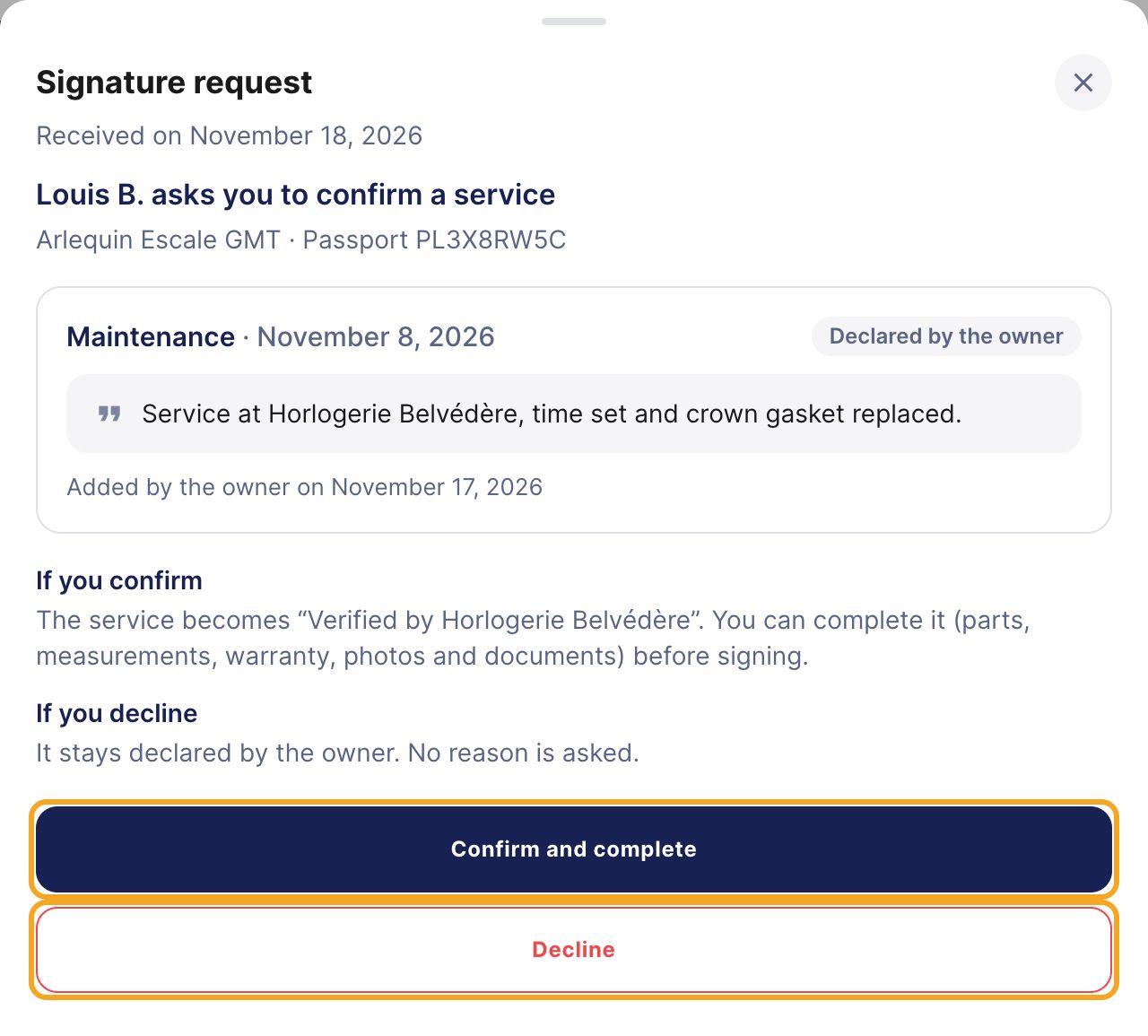
The Signature request window shows the service as the owner declared it. If it is indeed your work, click Confirm and complete. Otherwise, click Decline.
Louis B.'s request on his Arlequin Escale GMT, and the two possible answers.
Step 12: confirm and complete
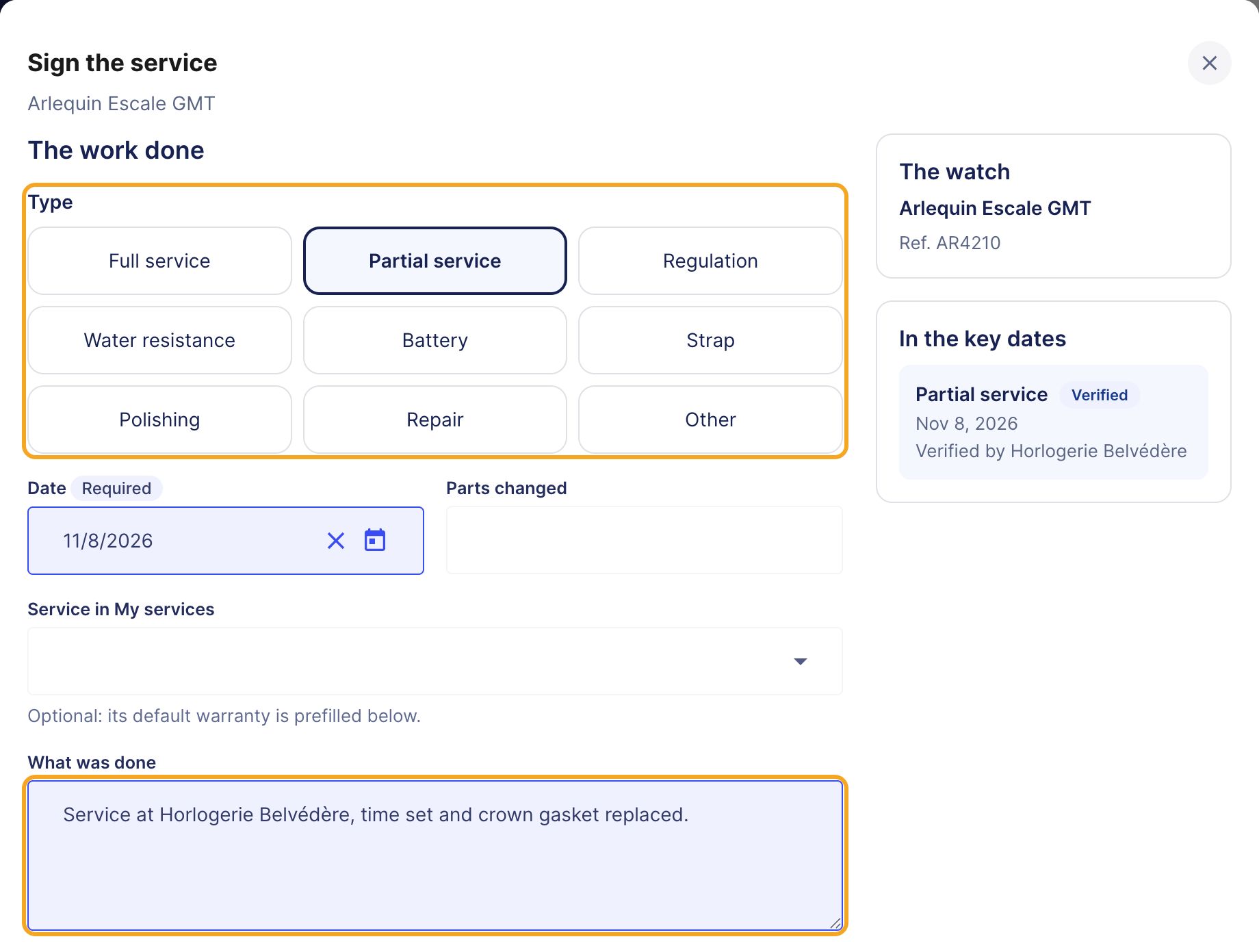
The signing form opens, prefilled with the owner's date and description. Check the Type, complete it if you wish (parts, measurements, warranty, photos and documents), then click Sign the service. The service goes from “declared by the owner” to “Verified by” your workshop, and the owner is told by email.
The request, prefilled: choose the type and complete it.
Step 13: or decline
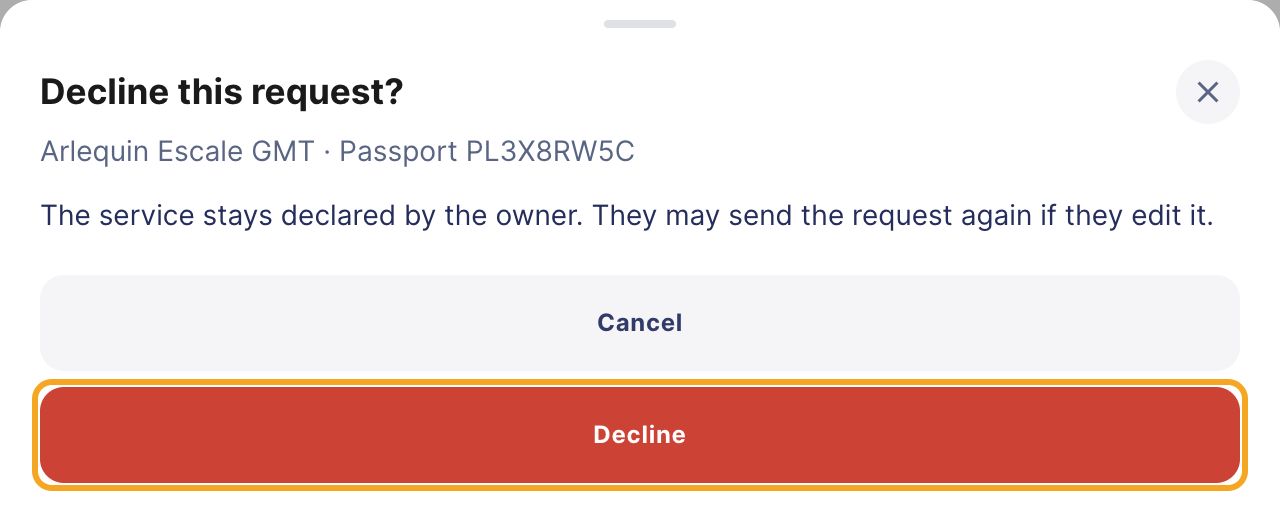
Decline this request? asks you to confirm: click Decline. No reason is asked. The service stays declared by the owner, who is told by email and may send the request again if they edit it.
The confirmation of the refusal.
Part D
Close an appointment
Step 14: say how the appointment went
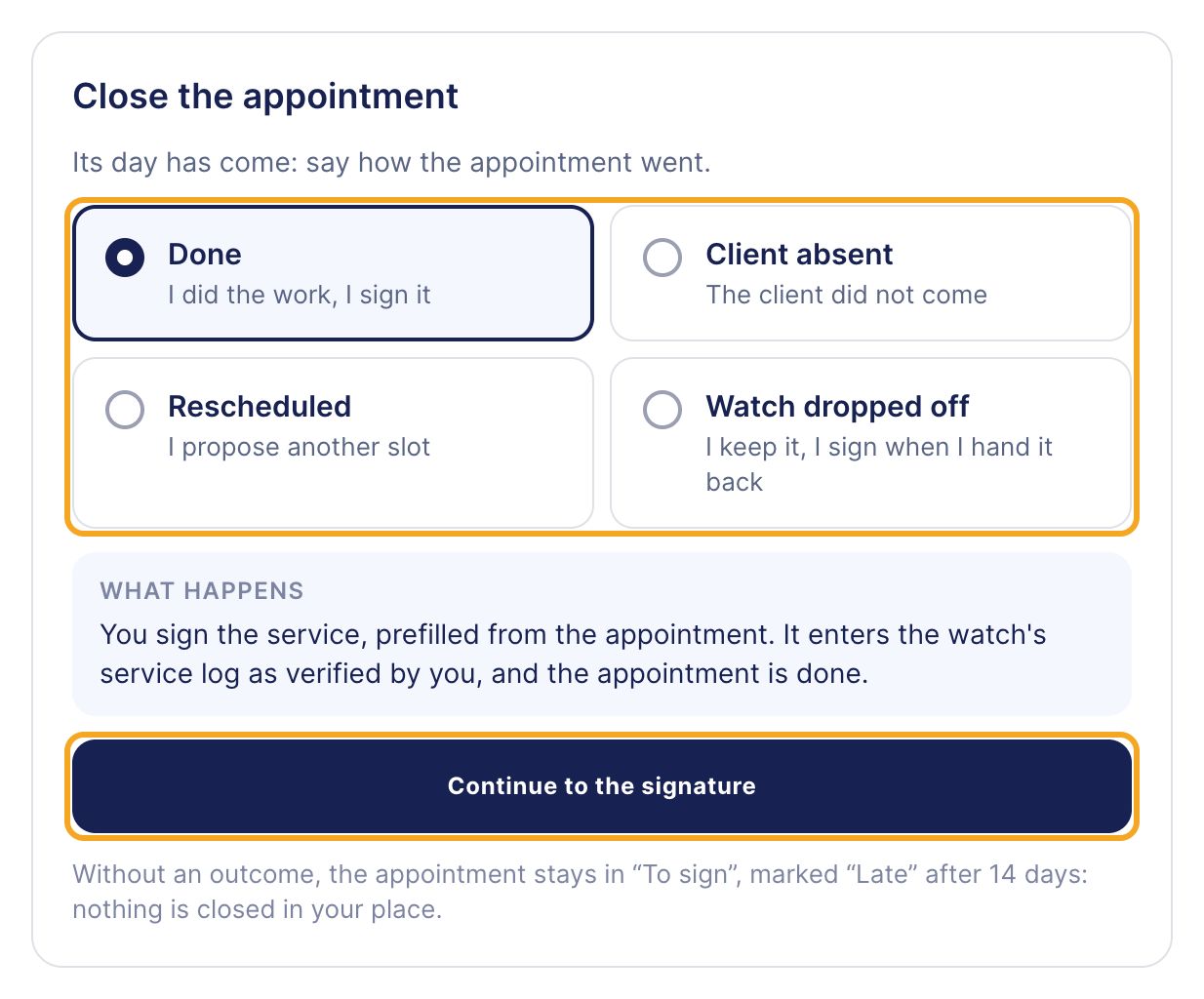
On the day of an appointment booked from your sheet, it shows in To sign. Click Close the appointment and choose the outcome:
Done: click Continue to the signature. The form opens, prefilled from the appointment, and the service enters the log when you sign it.
Client absent: the appointment is closed, nothing enters the log. The client gets the email “Missed appointment”, with a link to book a new appointment.
Rescheduled: you propose new slots, and the client has 72 hours to answer.
Watch dropped off: the appointment goes to “In progress” and stays in To sign. When you hand the watch back, click Sign on return.
The four outcomes of an appointment, and Continue to the signature.
info
Good to know
Nothing is closed in your place: without an outcome, the appointment stays in To sign, marked “Late” after 14 days. A service done without an appointment is signed from the watch's passport (part A). An appointment booked for Another watch, a watch with no passport yet, is closed with Done, with no entry in the service log.
Part E
When the owner reports an error
Step 15: read the report, then “Correct”
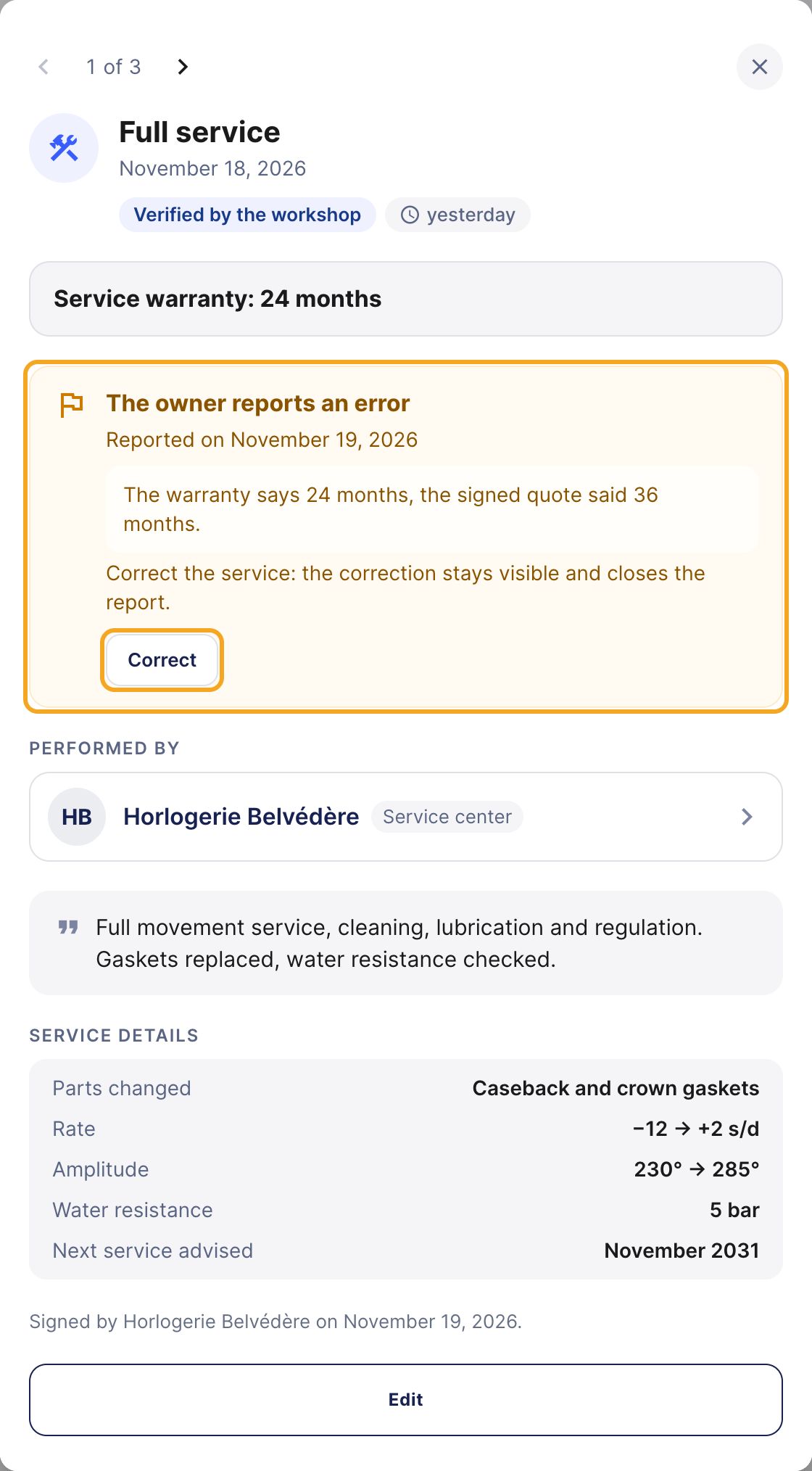
The owner can report an error on a service you signed: you get the email “A client reports an error on a maintenance”, with a link to the service. On the service's sheet, a The owner reports an error box shows their message. If they are right, click Correct: your correction stays visible and closes the report.
The owner's report on the warranty, and the Correct button.
info
Good to know
If the owner says the service never took place, the box becomes The owner contests this service, and you get the email “A client contests a maintenance”. Our team looks into the contest and, in the meantime, the service no longer reads “Verified”.
Part F
What your client sees
Step 16: the passport, on the owner's side
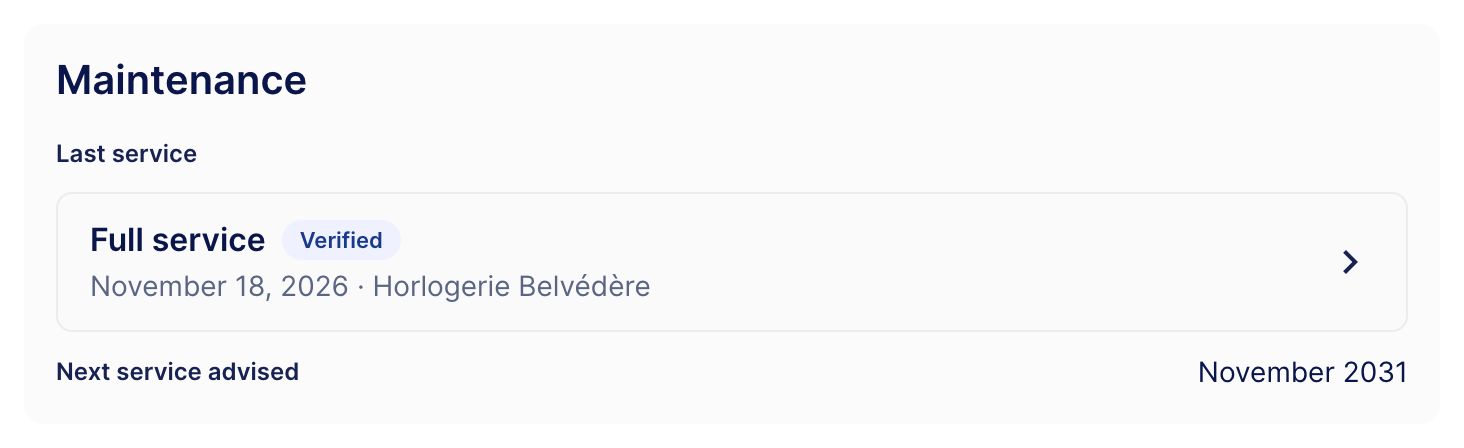
On their passport, the Maintenance card shows the Last service, verified by your workshop, and the Next service advised. Your client finds your name, the warranty and the details of the work there. While the warranty runs, the card adds “We will let you know 30 days before it ends.”
On the owner's side: the verified full service, and the next service in November 2031.
In short
Open the passport, then Sign a service (opening window or Key dates).
CVV code if asked, type, date, what was done, then warranty and next service: Sign the service.
For 48 hours: Edit or Delete the service. After that: Correct, the correction stays visible.
My services › To sign: close appointments, sign dropped-off watches, answer your clients' requests (each also reaches you by email).
A report from the owner, received by email? Correct if needed, which closes the report.
help_outline
Any question?
Click Need help? in the passport's opening window, or write to your Watch Certificate™ contact. We answer quickly.